Key takeaways
- Before checking, you can choose the pen Evalezy writes with on every checked copy: the handwriting, the ink colour, how dark it is and its size.
- There are eight handwritings: Teacher (the default), Natural, Scrawled, Quick, Cursive and three classic faces (Kalam, Patrick Hand, Architects Daughter). Ink can be red, blue, green, black or any colour you pick.
- “See how it will look” draws a full sample page with your pen before you save, so you are not guessing.
- The pen is set once in Settings (dashboard: Settings → Assessment; app: Settings) and every copy checked after you save uses it.
- The pen changes how the marks look, not the marks. After review, “Update checked copy” redraws one copy with your corrections, in the same pen or another.
Yes, you can choose how an AI-checked answer copy is written. In Evalezy, before you check a test, you pick the pen the AI marks with: the handwriting (eight styles, from a joined “Teacher” hand to neat classic print), the ink colour (red, blue, green, black or any colour), how dark it is and how big. A full-page preview shows the result before you save. This guide shows every handwriting on the same sample page and explains where to set it.
Why the pen on a checked copy matters
A checked copy is the part of checking students actually read. When it comes back as the student’s own pages with ticks, crosses, marks in the margin and a short note under an answer, it reads like a teacher’s copy. That is why Evalezy draws on the copy itself instead of sending a score table; see what a red-pen checked copy looks like.
But one red handwriting does not suit every school:
- House style. Many schools check in a particular colour, and some keep red for the final check only. The copy should match what students are used to.
- Readability. Younger students read neat, rounded letters more easily than a fast joined hand.
- Printing and photocopying. Some inks and weights print better than others on a school printer.
- A copy that looks hand-checked. A pen with a natural rhythm, uneven strokes and a slightly sloping line looks like it was written, not typed.
What you can choose
| Option | Choices | What it changes |
|---|---|---|
| Handwriting | Teacher (default), Natural, Scrawled, Quick, Cursive; classic: Kalam, Patrick Hand, Architects Daughter | Letter shapes, slant and how joined the writing is |
| Ink colour | Red, blue, green, black, or Custom (any colour from a picker) | Colour of ticks, crosses, marks, remarks and the circled total |
| How dark | A slider from light to dark | How heavy the ink looks on the page |
| Size | Small, medium, large | How big remarks and marks are written |
| Preview | “See how it will look” | Draws a full sample page with your pen before you save |
The handwritings, side by side
Below is the same part of one sample page (questions 2 to 4) drawn with different pens. These images come from Evalezy’s pen preview: the sample page is a demo page with demo remarks, not a real student’s copy.
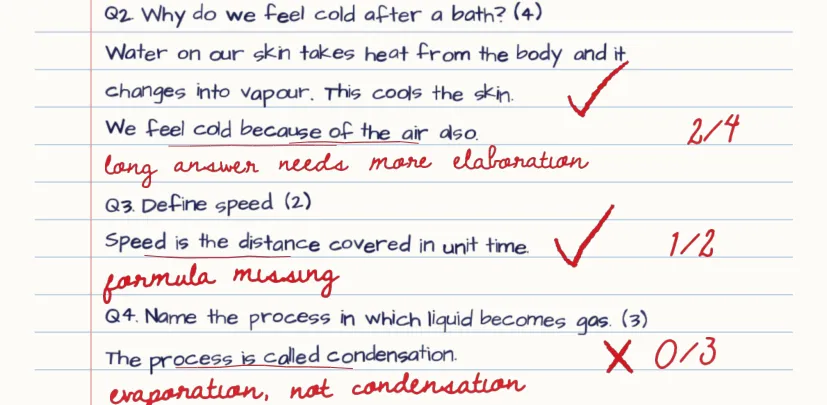
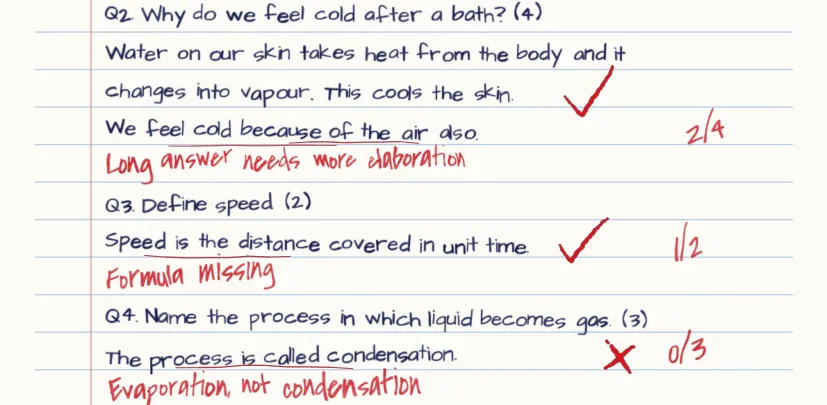
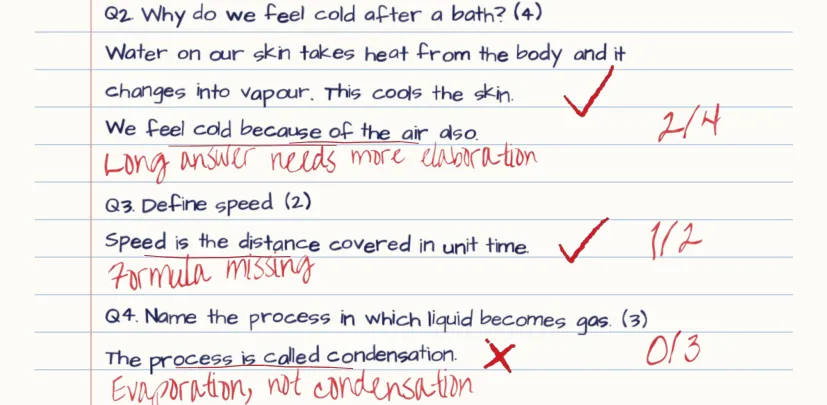
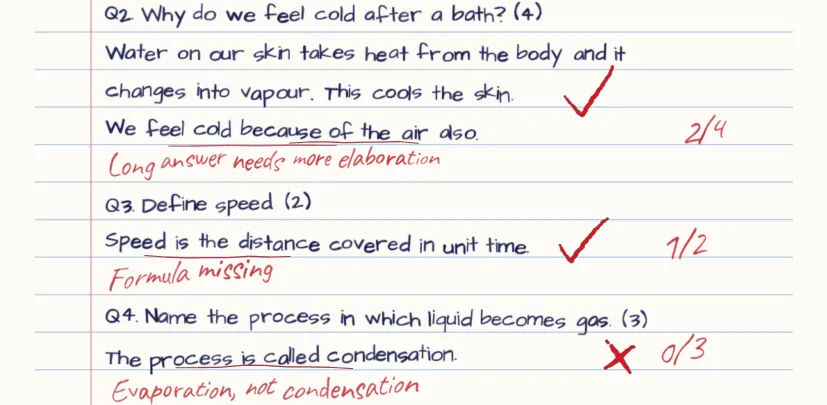
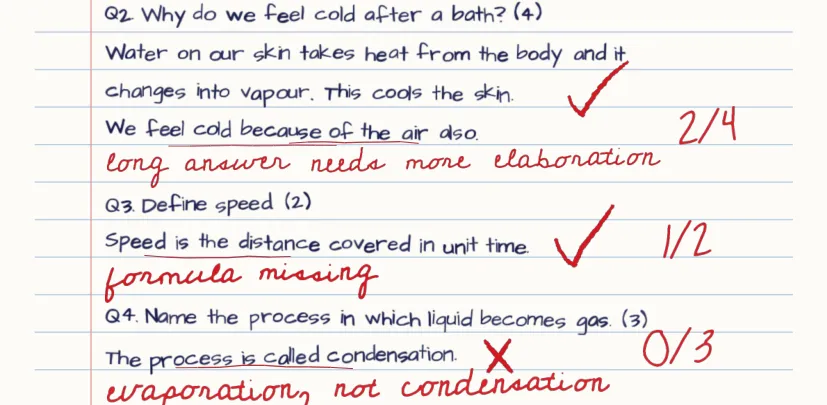
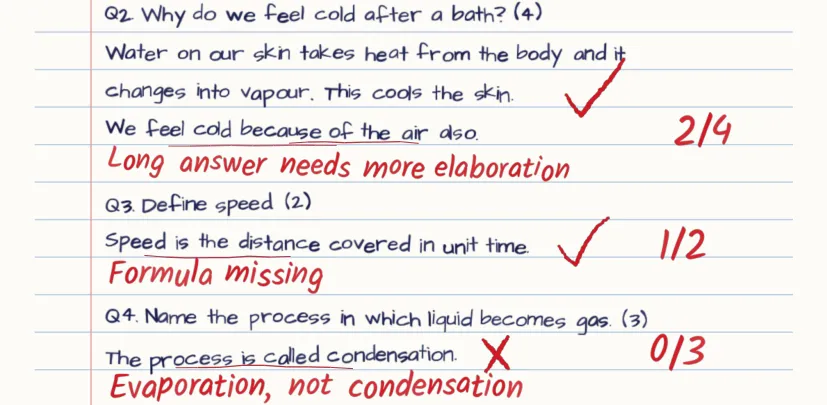
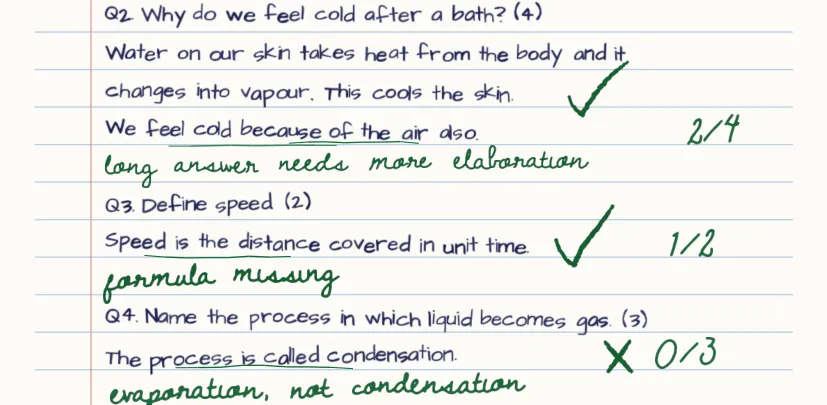
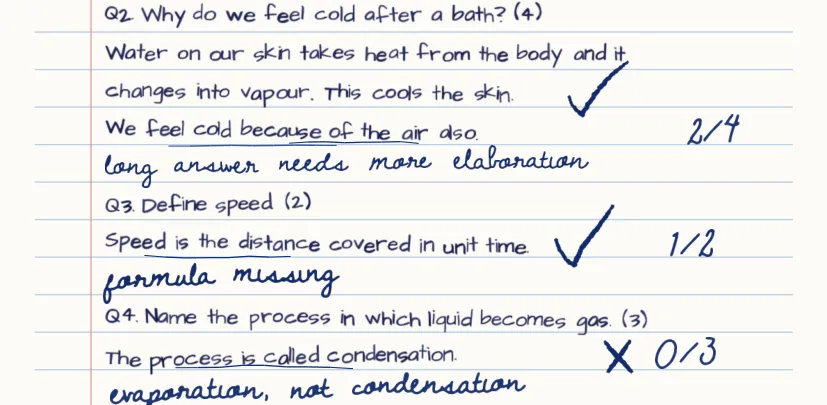
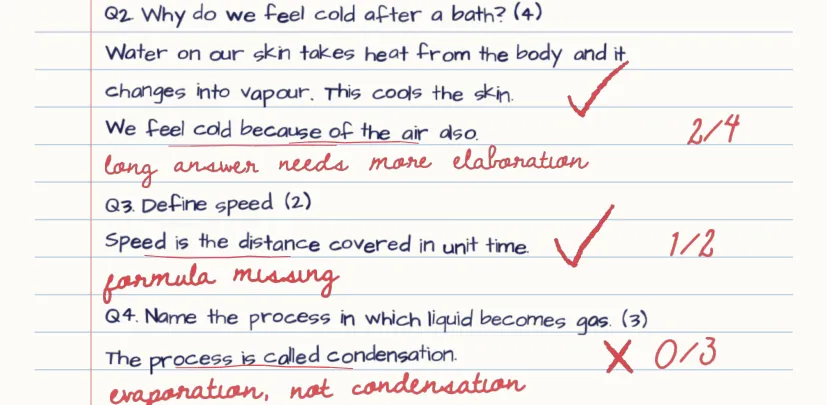
Sample page drawn by Evalezy’s pen preview. The two other classic faces, Patrick Hand and Architects Daughter, are available too and are not shown here.
How to set the pen before checking
- 1
Open Settings
In the Evalezy dashboard, go to Settings → Assessment. In the Evalezy app, open Settings from the menu.
- 2
Pick handwriting, ink, darkness and size
Tap a handwriting and an ink. For a colour that is not in the list, choose Custom and pick it. Move the slider to make the ink lighter or darker.
- 3
Press “See how it will look”
Evalezy draws a full sample page with your pen, the same way it draws a real checked copy. Change anything you do not like.
- 4
Save
Every copy checked after you save is written with this pen. Set it before you start checking a test.
On the same Settings page you can also add instructions for the AI checker (for example, “Follow the CBSE marking scheme. Letter writing: format 1, content 2, expression 2”) and switch on spelling and grammar highlighting for English answers: each error is underlined with its correction and listed in the feedback, with no marks deducted for it.
Remarks on the copy or beside it
The second choice that shapes the copy is where remarks go:
- Inside the copy (default): remarks are written on the answer sheet, next to the answer, the way most teachers check.
- Outside the copy: marks stay on the answer sheet, and the remarks go in a Teacher comments panel beside it. Useful when students write edge to edge and leave no room for notes.
Changing the pen for one copy
AI marks in Evalezy are a draft. In teacher review you can change any mark, remark or pen note before you release results. Then press Update checked copy: the copy is drawn again with your corrections. What you changed replaces the AI’s; everything else stays where it was.
In that step you can keep the pen the copy was checked with, or pick another one for this copy only, and switch its remarks between on the copy and beside it.
Which pen should you pick?
There is no right answer; these are starting points:
| If you want… | Try |
|---|---|
| A copy that looks hand-checked by a teacher | Teacher, red (the default) |
| Easy reading for younger classes | Classic (Kalam), medium or large |
| A relaxed, everyday hand | Natural or Quick |
| Your school’s usual colour | Any handwriting, with green, blue, black or a custom ink |
| Cleaner photocopies or printouts | A darker ink; check with the preview |
| Less red on the page | A lighter red, or blue |
Whatever you pick, press “See how it will look” first and look at the full page, not just one line: a style that looks good large can read faint on a whole page.
Where Evalezy fits
Evalezy checks scanned or phone-photographed answer copies and returns each student’s own copy, marked in the pen you chose. AI does the first check, the teacher reviews and releases. Look through a real checked copy, check copies from your phone with the Evalezy app, or see pricing: 1 credit per page checked, credits included in every plan, and failed or unreadable copies are free.
Frequently asked questions
Can AI-checked answer sheets use a green or blue pen instead of red?+
Yes. In Evalezy you choose the ink in Settings: red, blue, green, black, or any custom colour from a colour picker. You can also make the ink lighter or darker. Every copy checked after you save uses that ink.
Will the checked copy look like a teacher wrote on it?+
That is the aim. Ticks, crosses, marks and short remarks are drawn on the student’s own pages in a handwriting style, with uneven strokes and words that sit on a slightly sloping line, not typed text. The default handwriting is called Teacher. Look at the sample page drawn in each style before you choose.
Does changing the handwriting change the marks?+
No. The pen only changes how marks and remarks are drawn. The marks come from the check itself: the marking scheme for each question, and your review.
Where do I change the pen?+
In the dashboard, go to Settings → Assessment. In the Evalezy app, open Settings. Choose the handwriting, ink, darkness and size, press “See how it will look” to preview a full page, then save. A teacher can also pick a different pen for one copy when using “Update checked copy” after review.
Can the remarks go beside the copy instead of on it?+
Yes. Choose “Outside the copy”: marks stay on the answer sheet and the remarks go in a Teacher comments panel beside it. The default, “Inside the copy”, writes remarks on the sheet next to the answer.